A social app with a pocket wallet
Primal is a Nostr client with a Bitcoin wallet built in. You can follow people, read notes, send zaps and pay Lightning invoices without moving to another app. Its iOS and Android apps are open source. The Android project describes the wallet as self-custodial and powered by Breez SDK on Spark.
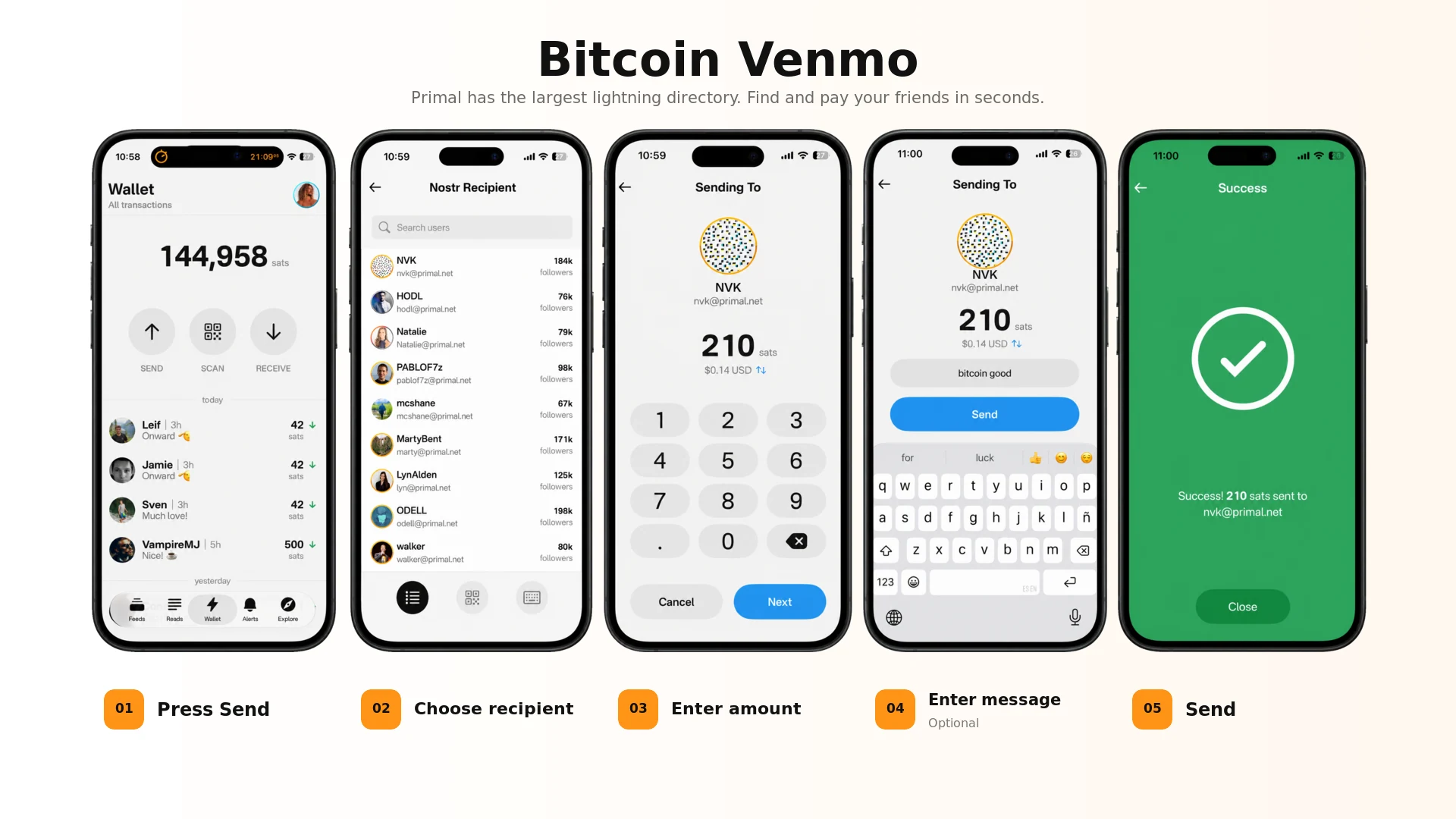
A zap is a Lightning payment attached to a Nostr profile or note. It can be a tip, a thank-you or just a signal that cost more than clicking a heart. Primal also lets you send sats to a Nostr contact, pay a normal Lightning invoice and receive through Lightning or a Bitcoin address.
Start small
- Install Primal from the official download page and create or sign in to your Nostr account.
- Open the wallet and add a small amount you can afford to lose.
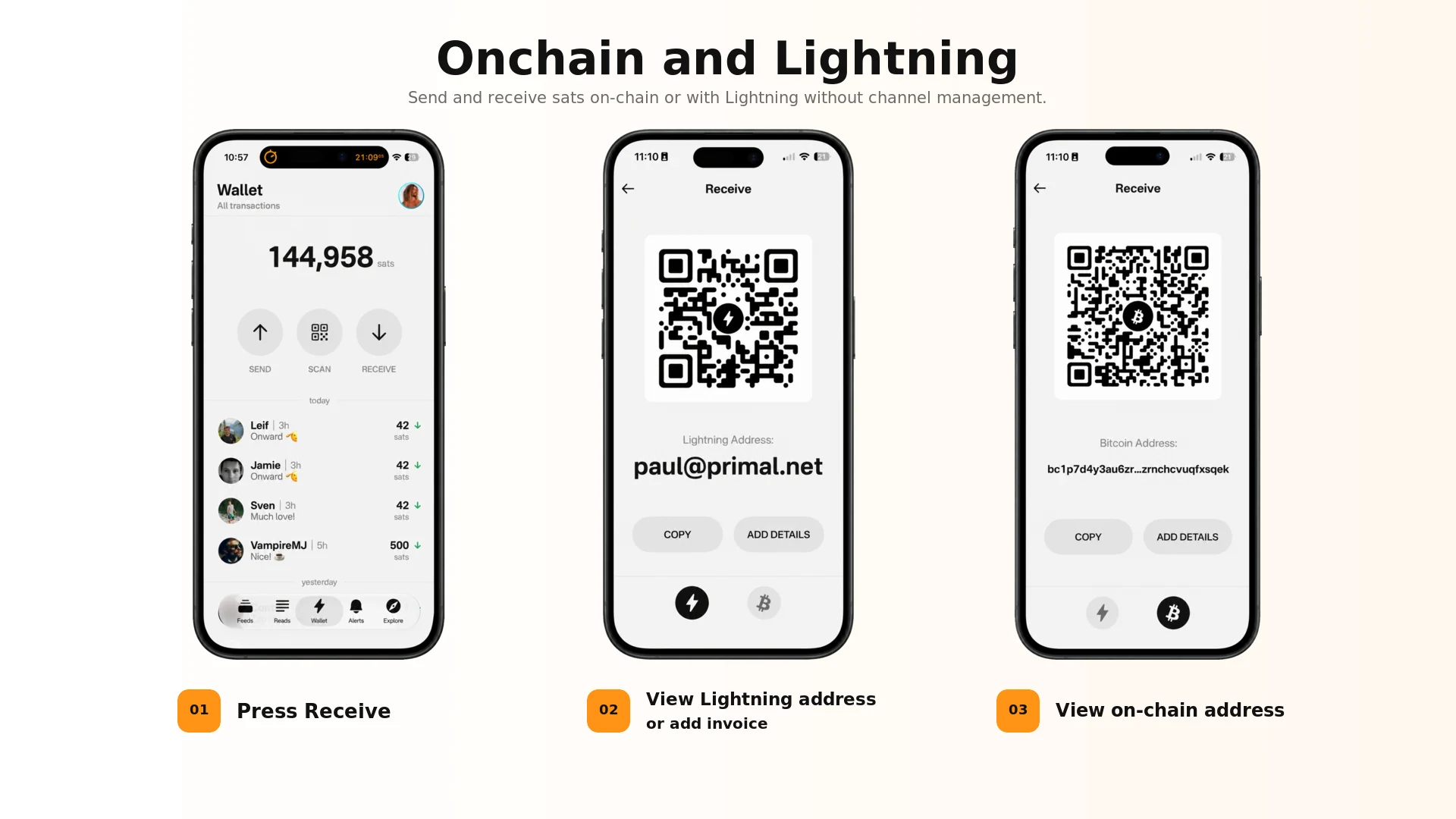
- To pay a Lightning invoice, choose Send, scan or paste the invoice, then check the amount and fee before confirming.
- To receive, choose Receive and select the method the sender needs. Make a fresh invoice rather than keeping an old one around.
- Try a small zap. Tap the lightning icon on a note or profile, choose the amount and confirm.
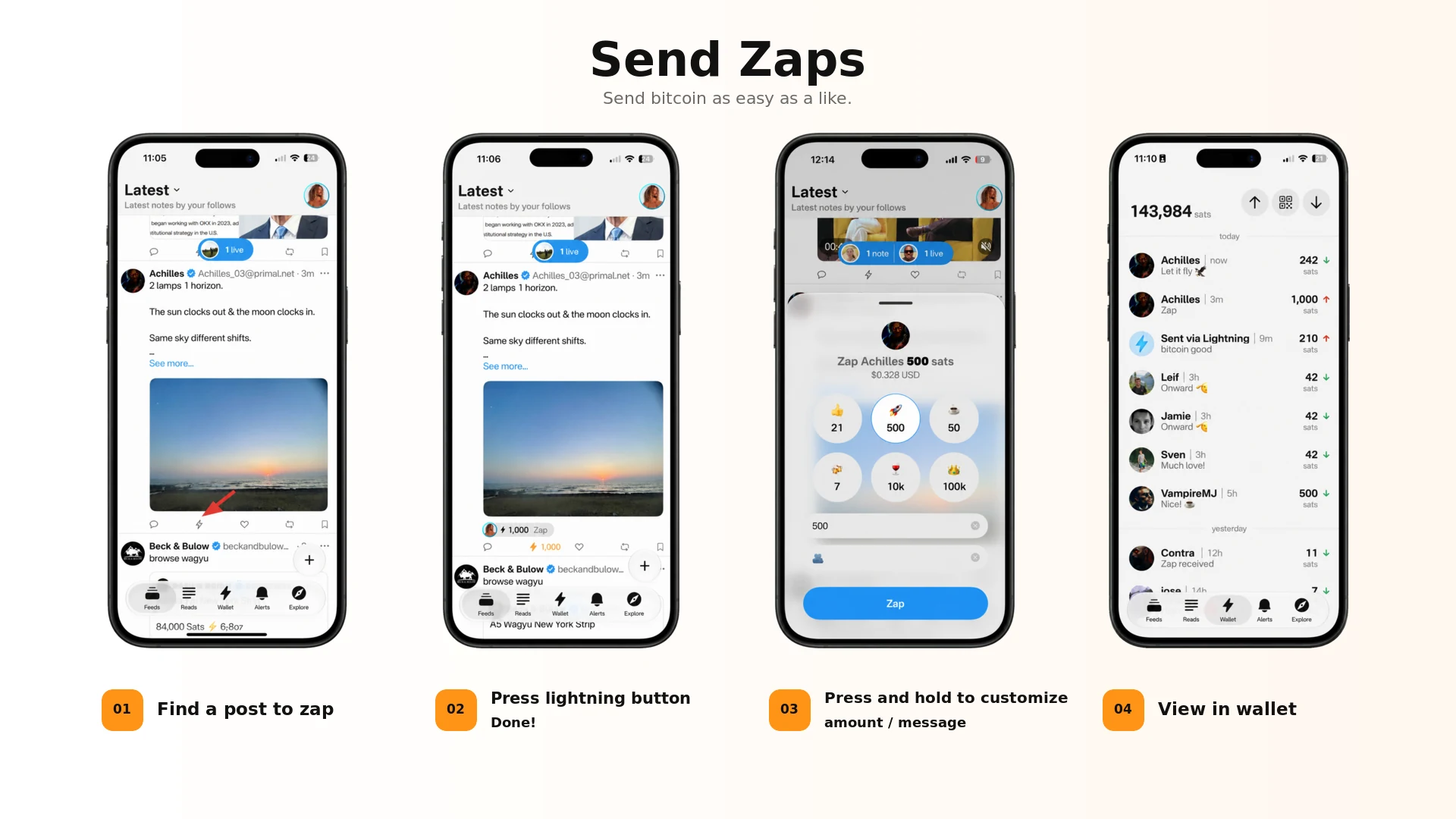
Primal can also find a recipient through Nostr and attach a message to the payment. That is convenient, but convenience is not verification. Confirm the profile, amount and destination before sending anything meaningful. Similar display names and stolen accounts are still a problem.
What self-custody means here
Primal's current wallet uses the Breez SDK implementation of Spark. The recovery words are yours and Primal says it cannot recover them for you. You also avoid running a Lightning node, opening channels or managing inbound liquidity.
That does not make it identical to holding normal Bitcoin UTXOs behind a hardware wallet. Spark uses a group of signing operators during off-chain transfers. Its own trust-model documentation requires an honest threshold at the time of transfer, and its limitations page discusses operator liveness and a prior-owner exit race. A unilateral Bitcoin exit exists, but the current exit procedure is marked beta and is technical.
That is a reasonable set of tradeoffs for fast, small payments. It is not where I would park long-term savings. A phone can also be lost, infected, unlocked under duress or backed up somewhere you did not intend.
Back up the Primal wallet
Primal creates a 12-word BIP-39 recovery phrase for a new Spark wallet. In the app, go to Settings → Wallet → Backup wallet.
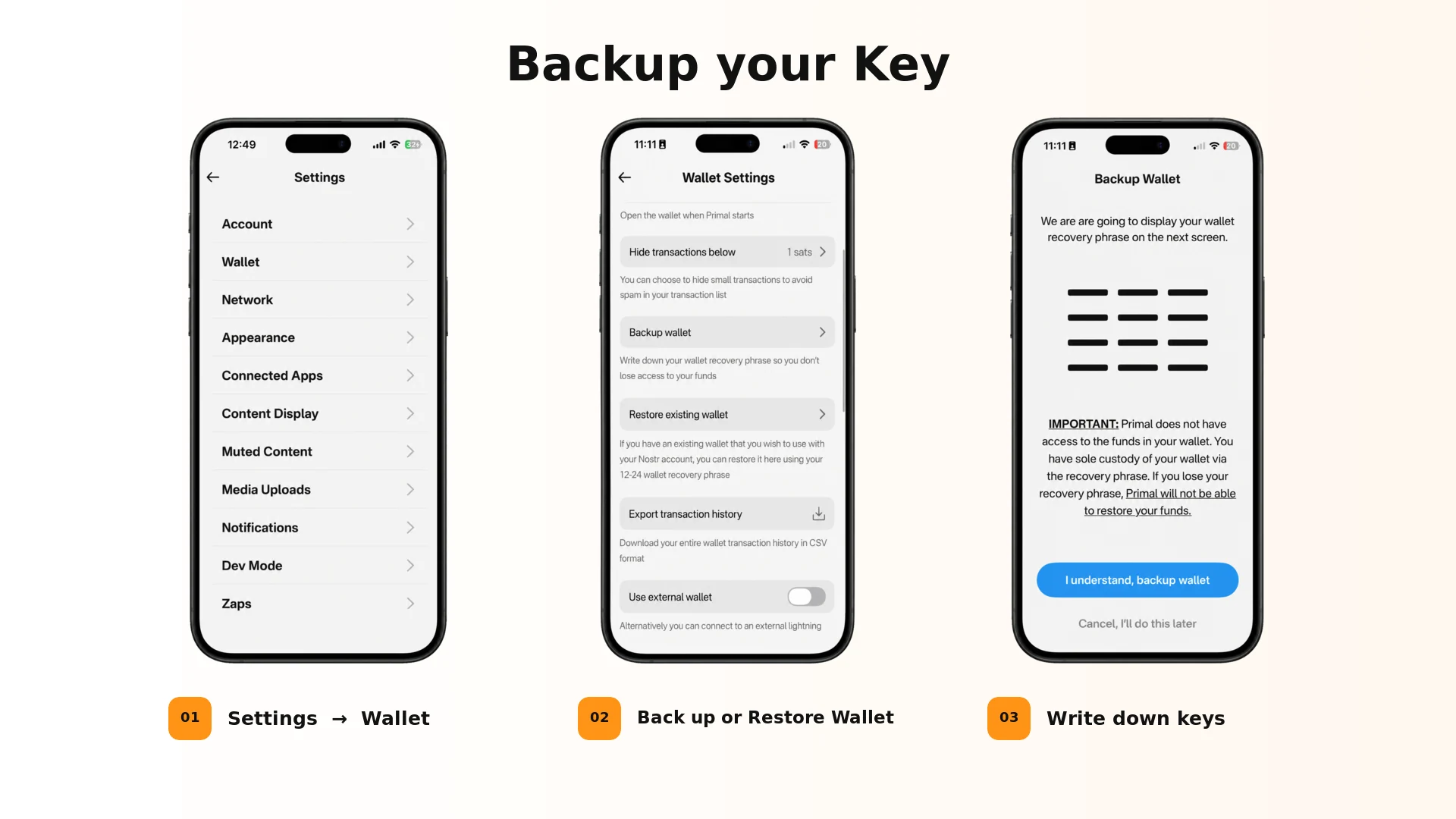
Write the words down in order and check them twice. Do not screenshot them, copy them into a password manager, email them or expose them to a camera. Anyone with these words can recover the wallet.
The wallet phrase and your Nostr private key are separate secrets. Backing up one does not back up the other.
Keep an additional copy in COLDCARD Seed Vault
If you already have a COLDCARD Mk4 or Q, Seed Vault can hold an encrypted copy of the Primal phrase alongside your main COLDCARD setup.
Do this once, in private, with no cameras pointed at the screens:
- On COLDCARD, enable Advanced/Tools → Danger Zone → Seed Vault → Enable.
- Go to Advanced/Tools → Temporary Seed → Import Words → 12 Words.
- Enter the Primal words on the COLDCARD itself. Do not send them by NFC or keep a QR copy on the phone.
- When asked whether to save the temporary seed to Seed Vault, press 1. Rename it something clear, such as Primal pocket.
- Choose Restore Master, then check that the normal COLDCARD master fingerprint is back.
- Make a fresh encrypted COLDCARD system backup. Current full backups include Seed Vault entries.
Seed Vault encrypts entries with a key tied to the COLDCARD master seed. It is an extra protected copy, not an independent backup. Keep the written Primal phrase offline too, and protect the COLDCARD master backup needed to recover its vault.
COLDCARD cannot sign Primal's Spark payments. Storing the phrase there does not remove it from the phone, reverse any earlier exposure or make the Primal balance cold. It just gives you a better place for an additional recovery copy.
Keep savings separate
Use Primal like cash in your pocket: zaps, small Lightning payments and money you may need quickly. For savings, generate a completely separate seed on COLDCARD and keep it off every phone and computer. Never type that COLDCARD savings seed into Primal.
Before creating the savings wallet, update and verify COLDCARD firmware: 5.6.2 or later for Mk4/Mk5, or 1.5.2Q or later for Q. Follow the current new-seed prompt, add your own private entropy, and back up the resulting seed—not the entropy sequence. Then review the COLDCARD savings security checklist before funding heavily.
The split is simple: Primal for social payments and daily use; on-chain COLDCARD storage for the amount that would hurt to lose.